
HAT-010 5x5 Matrix
Instance declaration
When you add a HAT-010 5x5 Matrix block to the workspace, the following instance declaration is automatically inserted into the Python code:
cheesestick = CheeseStick(0)
hat010 = cheesestick.HAT010()
Parameters
| Name | Kind | Description | Range / Type | Default |
|---|---|---|---|---|
| index | Dropdown option | Instance number (starting from 0) | Integer 0 or greater | 0 |
Start the LED matrix
Uses the 5x5 matrix.

Parameters
(none)
Python
cheesestick = CheeseStick(0)
hat010 = cheesestick.HAT010()

hat010.start()
Turn on one dot
Sets the LED color at the specified position.
The LED position is given as x, y coordinates.

Parameters
| Name | Kind | Description | Range / Type | Default |
|---|---|---|---|---|
| x | Input (field) | Horizontal coordinate | Integer 0 to 4 | - |
| y | Input (field) | Vertical coordinate | Integer 0 to 4 | - |
| color | Dropdown option | Color | off, red, orange, yellow, green, cyan, blue, violet, magenta, white | - |
Python
cheesestick = CheeseStick(0)
hat010 = cheesestick.HAT010()

hat010.set_one(2, 3, 'red')
Draw a shape
Turns on the LEDs in the configured pattern, starting from the specified position.
The LED position is given as x, y coordinates.

Parameters
| Name | Kind | Description | Range / Type | Default |
|---|---|---|---|---|
| x | Input (field) | x of the top-left corner of the shape | Integer | - |
| y | Input (field) | y of the top-left corner of the shape | Integer | - |
| color | Dropdown option | Color | off, red, orange, yellow, green, cyan, blue, violet, magenta, white | - |
| shape | Dropdown option | Shape name | rectangle, triangle, diamond, circle, x, like, dislike, angry, mouth_open, mouth_close, heart, star, up_arrow, down_arrow, left_arrow, right_arrow, walking, dog, butterfly, airplane, quarter_note, eighth_note | - |
Python
cheesestick = CheeseStick(0)
hat010 = cheesestick.HAT010()

hat010.draw_shape(0, 0, 'red', 'heart')
Draw a number
Turns on the LEDs in the configured pattern, starting from the specified position.
The LED position is given as x, y coordinates.

Parameters
| Name | Kind | Description | Range / Type | Default |
|---|---|---|---|---|
| x | Input (field) | x of the top-left corner of the number | Integer | - |
| y | Input (field) | y of the top-left corner of the number | Integer | - |
| color | Dropdown option | Color | off, red, orange, yellow, green, cyan, blue, violet, magenta, white | - |
| number | Dropdown option | Number to draw | 0, 1, 2, 3, 4, 5, 6, 7, 8, 9 | - |
Python
cheesestick = CheeseStick(0)
hat010 = cheesestick.HAT010()

hat010.draw_number(0, 0, 'red', 5)
Draw a pattern
Turns on the LEDs in the configured pattern, starting from the specified position.
The LED position is given as x, y coordinates.
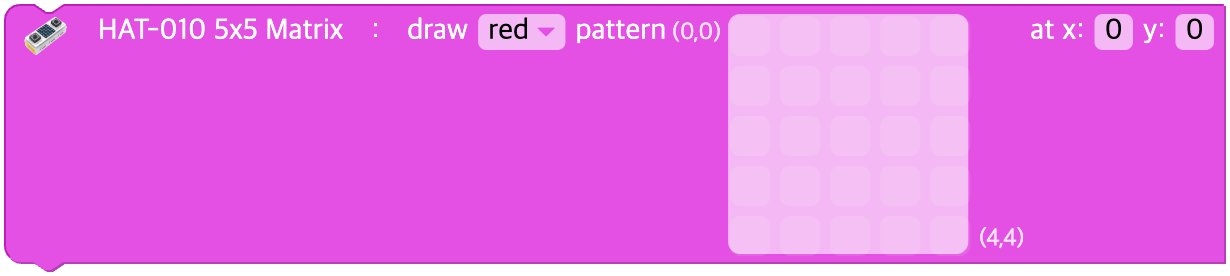
Parameters
| Name | Kind | Description | Range / Type | Default |
|---|---|---|---|---|
| x | Input (field) | x of the top-left corner | Integer | - |
| y | Input (field) | y of the top-left corner | Integer | - |
| color | Dropdown option | Color | off, red, orange, yellow, green, cyan, blue, violet, magenta, white | - |
| matrix | Input (array) | A 25-cell pixel array (0/1) | An integer array of length 25 | - |
Python
cheesestick = CheeseStick(0)
hat010 = cheesestick.HAT010()

hat010.draw_pattern(0, 0, 'red', [
   1, 0, 1, 0, 1,
   0, 1, 0, 1, 0,
   1, 0, 1, 0, 1,
   0, 1, 0, 1, 0,
   1, 0, 1, 0, 1
])
Move the matrix
Moves the display by the specified x, y amounts.
If the x value is positive the display moves to the right, and if it is negative it moves to the left.
If the y value is positive the display moves down, and if it is negative it moves up.

Parameters
| Name | Kind | Description | Range / Type | Default |
|---|---|---|---|---|
| x | Input (field) | Horizontal amount to move | Integer | - |
| y | Input (field) | Vertical amount to move | Integer | - |
Python
cheesestick = CheeseStick(0)
hat010 = cheesestick.HAT010()

hat010.shift(1, 0)
Turn off one dot
Turns off the LED at the specified position.
The LED position is given as x, y coordinates.

Parameters
| Name | Kind | Description | Range / Type | Default |
|---|---|---|---|---|
| x | Input (field) | Horizontal coordinate | Integer 0 to 4 | - |
| y | Input (field) | Vertical coordinate | Integer 0 to 4 | - |
Python
cheesestick = CheeseStick(0)
hat010 = cheesestick.HAT010()

hat010.turn_off_one(2, 3)
Turn off all
Turns off all the LEDs shown on the display.

Parameters
(none)
Python
cheesestick = CheeseStick(0)
hat010 = cheesestick.HAT010()

hat010.turn_off_all()
Set the brightness
Sets the brightness of the 5x5 matrix.
The range of values you can choose is 0 to 100.

Parameters
| Name | Kind | Description | Range / Type | Default |
|---|---|---|---|---|
| value | Input (field) | Brightness | Integer 0 to 100 | - |
Python
cheesestick = CheeseStick(0)
hat010 = cheesestick.HAT010()

hat010.set_brightness(50)
Change the brightness
Changes the brightness of the 5x5 matrix.
The range of values you can choose is -100 to 100.

Parameters
| Name | Kind | Description | Range / Type | Default |
|---|---|---|---|---|
| value | Input (field) | Amount of brightness change | Integer | - |
Python
cheesestick = CheeseStick(0)
hat010 = cheesestick.HAT010()

hat010.change_brightness(10)
Button input value
The input state of the selected button
It outputs 0 if the button is pressed, and 1 if the button is not pressed.

Parameters
| Name | Kind | Description | Range / Type | Default |
|---|---|---|---|---|
| unit | Dropdown option | Button name | button A ('A'), button B ('B') | - |
Python
cheesestick = CheeseStick(0)
hat010 = cheesestick.HAT010()

hat010.button_input('A')
Was the button clicked?
Whether the selected button was clicked
This block returns true only at the moment the selected button is clicked, and false otherwise.

Parameters
| Name | Kind | Description | Range / Type | Default |
|---|---|---|---|---|
| unit | Dropdown option | Button name | button A ('A'), button B ('B') | - |
Python
cheesestick = CheeseStick(0)
hat010 = cheesestick.HAT010()

hat010.button_click('A')