
HAT-010 5x5 點陣
宣告實例
把 HAT-010 5x5 點陣(HAT010) 積木新增到工作區後,Python 程式碼中會自動插入下面這樣的實例宣告:
python
cheesestick = CheeseStick(0)
hat010 = cheesestick.HAT010()
參數
| 名稱 | 類別 | 說明 | 範圍 / 種類 | 預設值 |
|---|---|---|---|---|
| index | 下拉選項 | 實例編號(從 0 開始) | 0 以上的整數 | 0 |
啟動
開始使用 5x5 點陣。

參數
(無)
Python
python
cheesestick = CheeseStick(0)
hat010 = cheesestick.HAT010()

hat010.start()
點亮一個 LED
設定指定位置的 LED 顏色。
LED 的位置用 x, y 坐標表示。

參數
| 名稱 | 類別 | 說明 | 範圍 / 種類 | 預設值 |
|---|---|---|---|---|
| x | 輸入值(欄位) | 橫坐標 | 0 ~ 4 的整數 | - |
| y | 輸入值(欄位) | 縱坐標 | 0 ~ 4 的整數 | - |
| color | 下拉選項 | 顏色 | 關閉(off), 紅色(red), 橙色(orange), 黃色(yellow), 綠色(green), 青色(cyan), 藍色(blue), 紫色(violet), 洋紅色(magenta), 白色(white) | - |
Python
python
cheesestick = CheeseStick(0)
hat010 = cheesestick.HAT010()

hat010.set_one(2, 3, 'red')
繪制圖形
從指定的位置開始,按設定的圖案點亮 LED。
LED 的位置用 x, y 坐標表示。

參數
| 名稱 | 類別 | 說明 | 範圍 / 種類 | 預設值 |
|---|---|---|---|---|
| x | 輸入值(欄位) | 圖形左上角的 x | 整數 | - |
| y | 輸入值(欄位) | 圖形左上角的 y | 整數 | - |
| color | 下拉選項 | 顏色 | off, red, orange, yellow, green, cyan, blue, violet, magenta, white | - |
| shape | 下拉選項 | 圖形名稱 | rectangle, triangle, diamond, circle, x, like, dislike, angry, mouth_open, mouth_close, heart, star, up_arrow, down_arrow, left_arrow, right_arrow, walking, dog, butterfly, airplane, quarter_note, eighth_note | - |
Python
python
cheesestick = CheeseStick(0)
hat010 = cheesestick.HAT010()

hat010.draw_shape(0, 0, 'red', 'heart')
繪制數字
從指定的位置開始,按設定的圖案點亮 LED。
LED 的位置用 x, y 坐標表示。

參數
| 名稱 | 類別 | 說明 | 範圍 / 種類 | 預設值 |
|---|---|---|---|---|
| x | 輸入值(欄位) | 數字左上角的 x | 整數 | - |
| y | 輸入值(欄位) | 數字左上角的 y | 整數 | - |
| color | 下拉選項 | 顏色 | off, red, orange, yellow, green, cyan, blue, violet, magenta, white | - |
| number | 下拉選項 | 要繪制的數字 | 0, 1, 2, 3, 4, 5, 6, 7, 8, 9 | - |
Python
python
cheesestick = CheeseStick(0)
hat010 = cheesestick.HAT010()

hat010.draw_number(0, 0, 'red', 5)
繪制圖案
從指定的位置開始,按設定的圖案點亮 LED。
LED 的位置用 x, y 坐標表示。
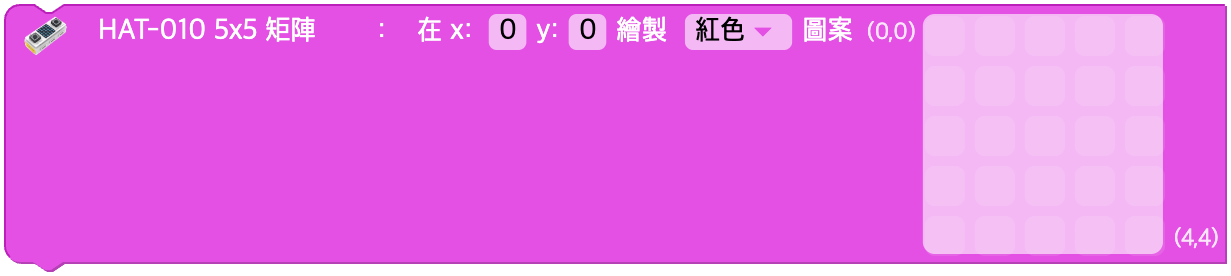
參數
| 名稱 | 類別 | 說明 | 範圍 / 種類 | 預設值 |
|---|---|---|---|---|
| x | 輸入值(欄位) | 左上角的 x | 整數 | - |
| y | 輸入值(欄位) | 左上角的 y | 整數 | - |
| color | 下拉選項 | 顏色 | off, red, orange, yellow, green, cyan, blue, violet, magenta, white | - |
| matrix | 輸入值(陣列) | 25 格的像素陣列 (0/1) | 長度為 25 的整數陣列 | - |
Python
python
cheesestick = CheeseStick(0)
hat010 = cheesestick.HAT010()

hat010.draw_pattern(0, 0, 'red', [
   1, 0, 1, 0, 1,
   0, 1, 0, 1, 0,
   1, 0, 1, 0, 1,
   0, 1, 0, 1, 0,
   1, 0, 1, 0, 1
])
移動
按指定的 x, y 移動畫面。
x 為正數時畫面向右移動,為負數時向左移動。
y 為正數時畫面向下移動,為負數時向上移動。

參數
| 名稱 | 類別 | 說明 | 範圍 / 種類 | 預設值 |
|---|---|---|---|---|
| x | 輸入值(欄位) | 橫向移動量 | 整數 | - |
| y | 輸入值(欄位) | 縱向移動量 | 整數 | - |
Python
python
cheesestick = CheeseStick(0)
hat010 = cheesestick.HAT010()

hat010.shift(1, 0)
關閉一個 LED
關閉指定位置的 LED。
LED 的位置用 x, y 坐標表示。

參數
| 名稱 | 類別 | 說明 | 範圍 / 種類 | 預設值 |
|---|---|---|---|---|
| x | 輸入值(欄位) | 橫坐標 | 0 ~ 4 的整數 | - |
| y | 輸入值(欄位) | 縱坐標 | 0 ~ 4 的整數 | - |
Python
python
cheesestick = CheeseStick(0)
hat010 = cheesestick.HAT010()

hat010.turn_off_one(2, 3)
關閉所有 LED
關閉畫面上顯示的所有 LED。

參數
(無)
Python
python
cheesestick = CheeseStick(0)
hat010 = cheesestick.HAT010()

hat010.turn_off_all()
設定亮度
設定 5x5 點陣的亮度。
可以選擇的值的範圍是 0 ~ 100。

參數
| 名稱 | 類別 | 說明 | 範圍 / 種類 | 預設值 |
|---|---|---|---|---|
| value | 輸入值(欄位) | 亮度 | 0 ~ 100 的整數 | - |
Python
python
cheesestick = CheeseStick(0)
hat010 = cheesestick.HAT010()

hat010.set_brightness(50)
改變亮度
改變 5x5 點陣的亮度。
可以選擇的值的範圍是 -100 ~ 100。

參數
| 名稱 | 類別 | 說明 | 範圍 / 種類 | 預設值 |
|---|---|---|---|---|
| value | 輸入值(欄位) | 亮度變化量 | 整數 | - |
Python
python
cheesestick = CheeseStick(0)
hat010 = cheesestick.HAT010()

hat010.change_brightness(10)
按鈕
所選按鈕的輸入狀態
按鈕被按下時輸出 0,沒有被按下時輸出 1。

參數
| 名稱 | 類別 | 說明 | 範圍 / 種類 | 預設值 |
|---|---|---|---|---|
| unit | 下拉選項 | 按鈕名稱 | A 按鈕(A), B 按鈕(B) | - |
Python
python
cheesestick = CheeseStick(0)
hat010 = cheesestick.HAT010()

hat010.button_input('A')
按鈕被點擊?
所選按鈕是否被點擊
這個積木只在所選按鈕被點擊的那一刻回傳 true,其他時候回傳 false。

參數
| 名稱 | 類別 | 說明 | 範圍 / 種類 | 預設值 |
|---|---|---|---|---|
| unit | 下拉選項 | 按鈕名稱 | A 按鈕(A), B 按鈕(B) | - |
Python
python
cheesestick = CheeseStick(0)
hat010 = cheesestick.HAT010()

hat010.button_click('A')